


As a registered Lalamove Driver Partner, you’re ready to start taking orders. To help you make your first delivery a success, we’ve prepared a guide to walk you through every step of the process.
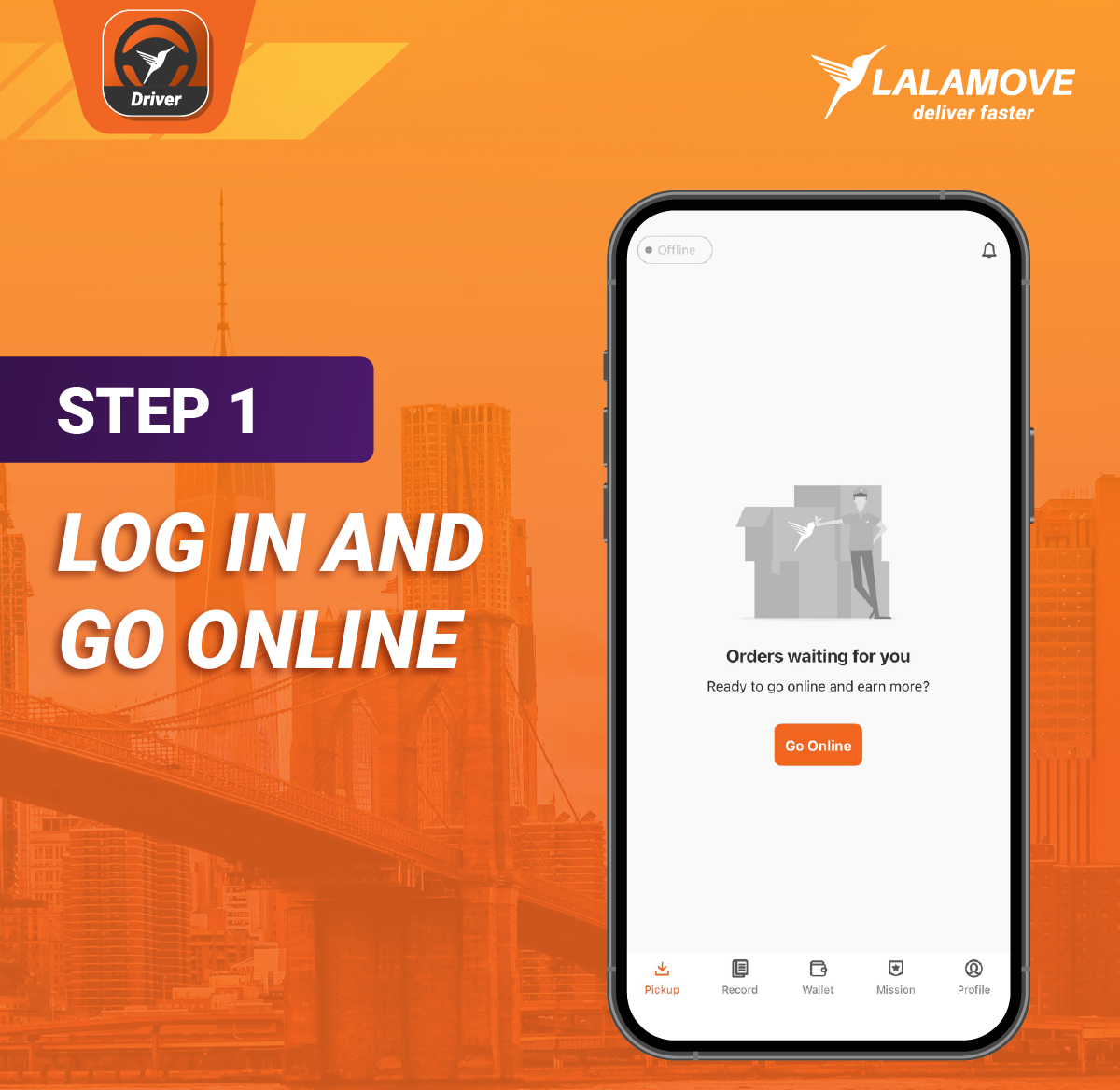
Step 1: Log In and Go Online
To ensure you’re ready to receive orders, check that you’re logged in to the Lalamove Driver App. Once you’re logged in, tap the “Go Online” button. Keep in mind that being online means you are ready to accept and fulfill orders.
Step 2: Wait for an Incoming Order
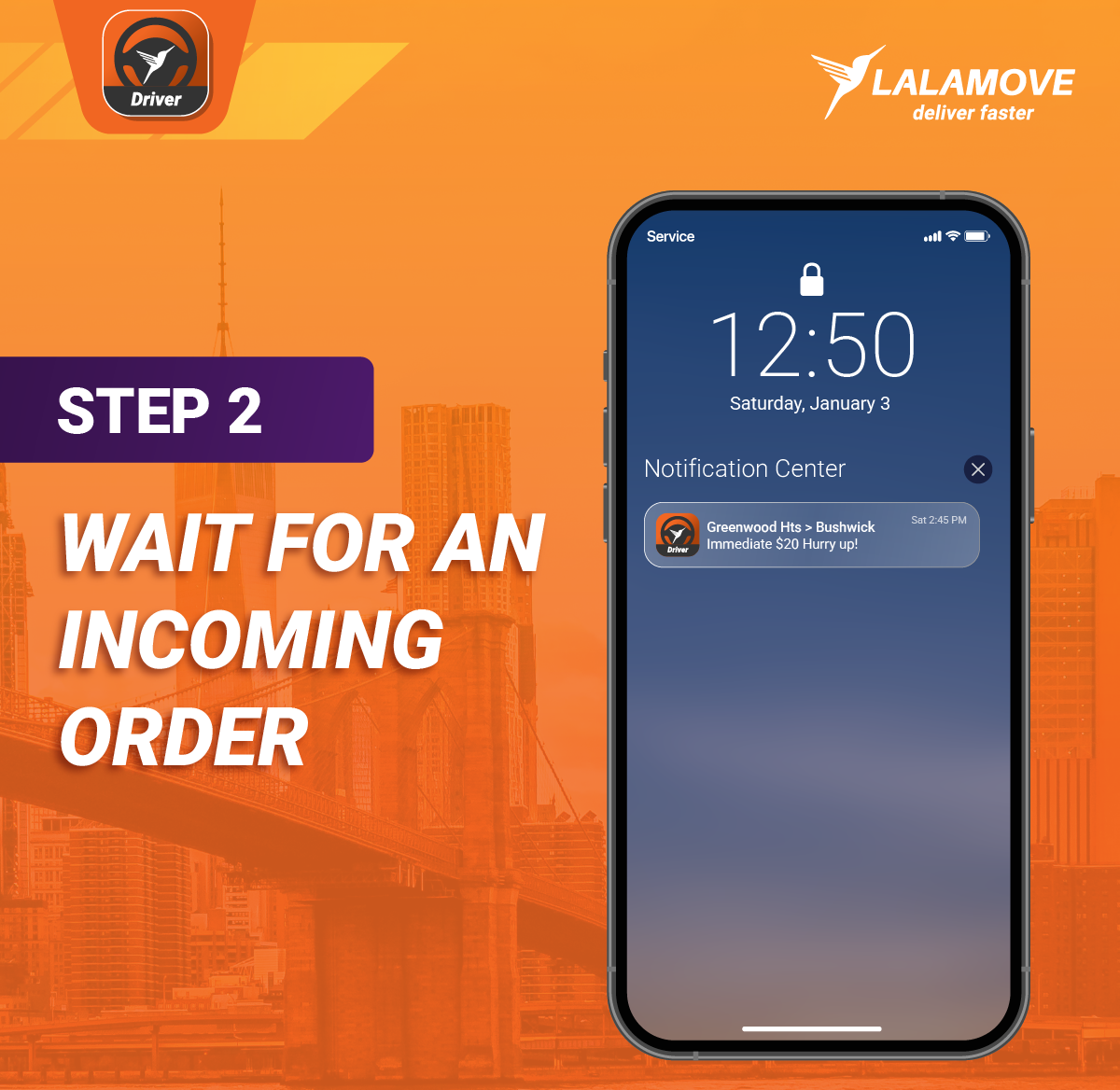
Now that you’re online, you’ll receive a notification on your phone once a new order is available near you.
Step 3: Review the Order Details
When you see a new order, open the Driver App to review the delivery details. Before accepting an order, you will see the:
-
Order type (immediate or scheduled)
-
Pickup and drop-off locations
-
Distances to each point
-
Estimated fare
-
Required vehicle type
-
User order notes
Make sure you are comfortable with all the order requirements before accepting. There are no penalties for passing on an order.
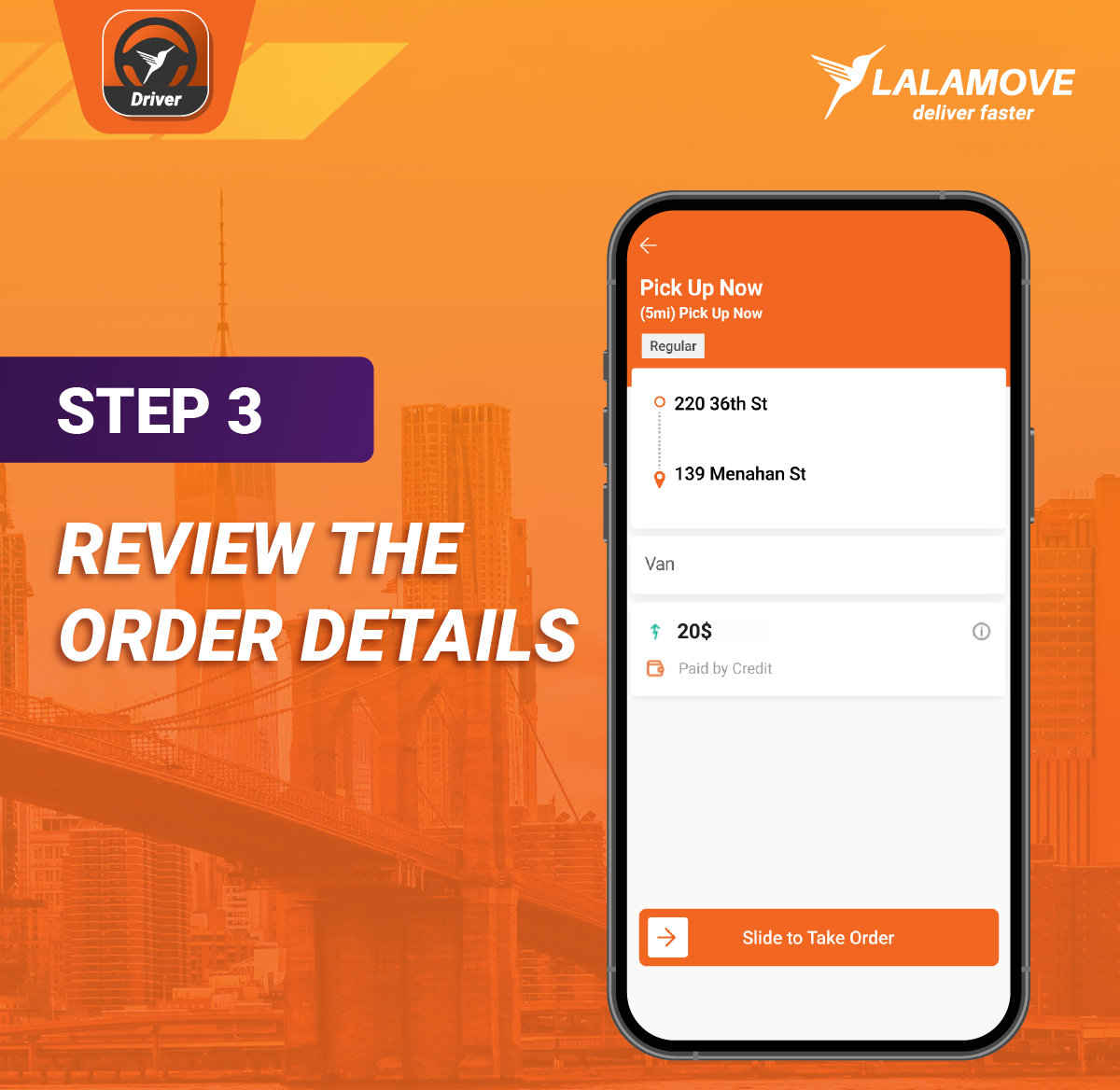
You’ll have 15 seconds to accept an order before it is presented to another Driver Partner. To confirm an order, slide to accept it.
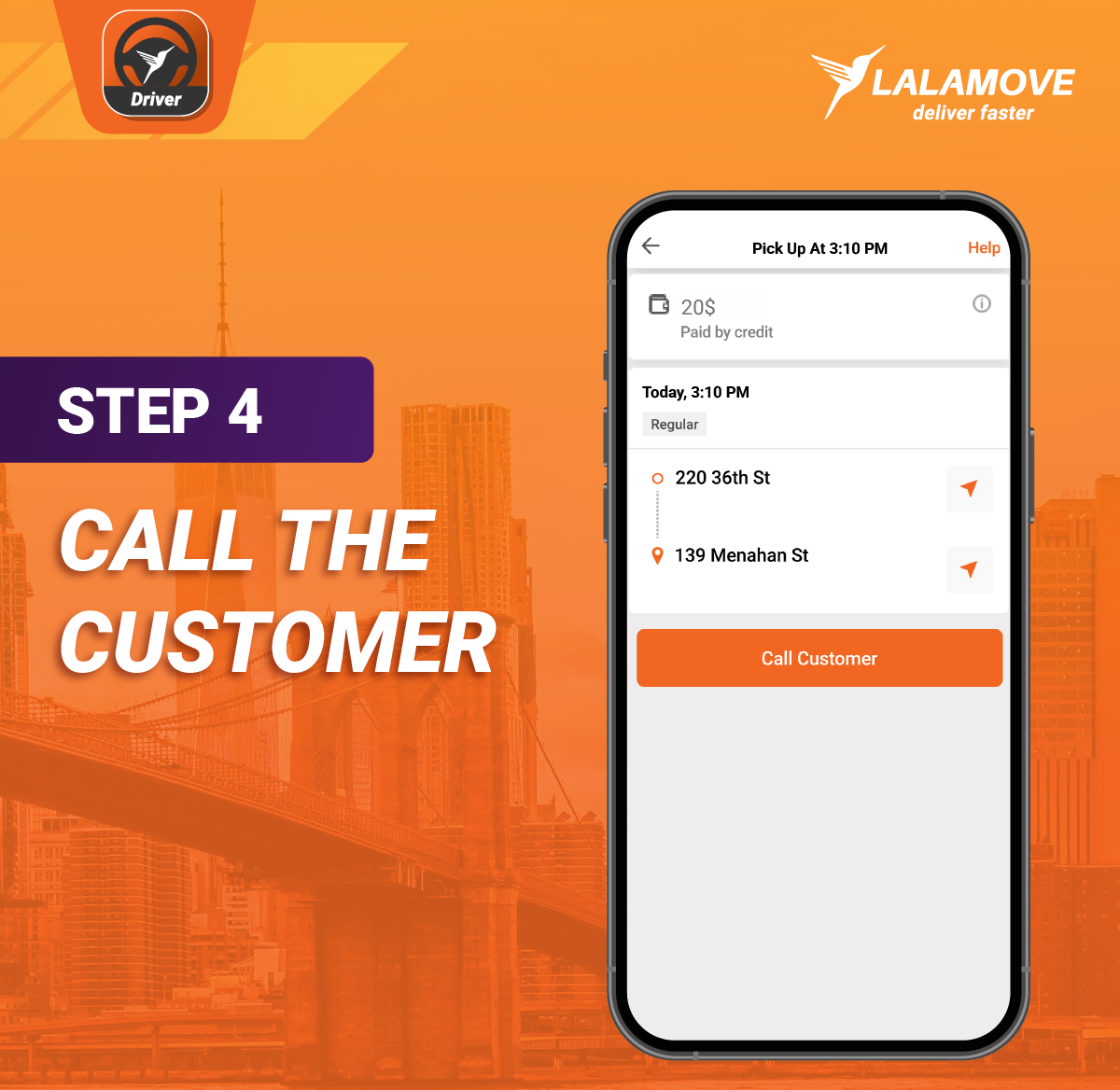
Step 4: Call the Customer
After accepting an order, call the customer in the app to confirm the delivery details, like the item description, pickup time, and address(es).
Step 5: Arrive at the Pickup Location
The Driver App will show you the pickup location and provide a recommended route. Be sure to arrive on time and contact the customer if you anticipate any delays.
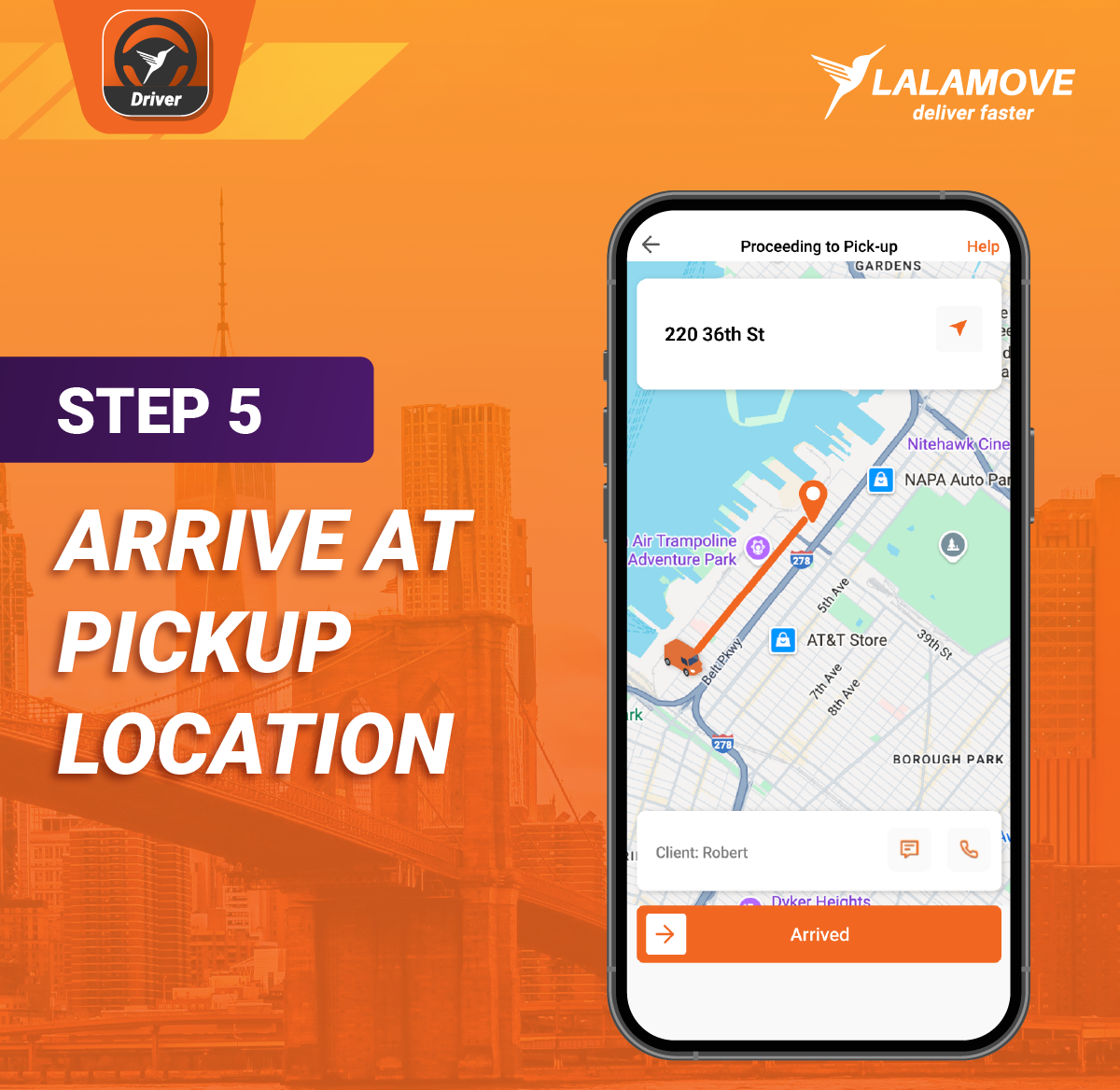
At the pickup point, slide to confirm that you arrived and take a clear picture of the item.
Step 6: Deliver to the Drop-Off Location
The Driver App will guide you to the drop-off destination. If there are any delays, let the customer know.
Once you arrive, hand the item to the recipient. Take a clear picture of the item or get an eSignature from the recipient as proof of delivery.
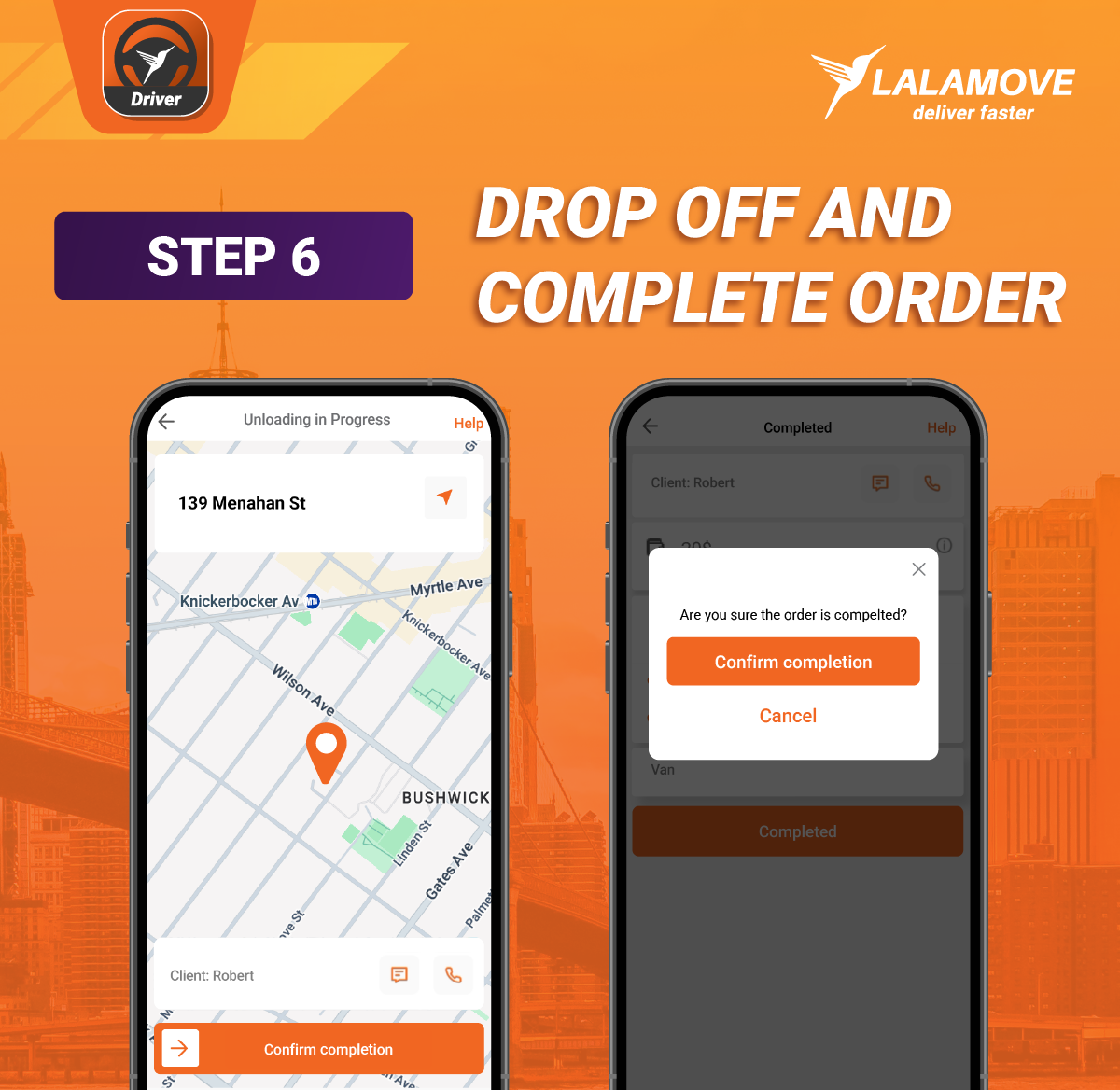
If the customer opted to pay for delivery with cash, settle the payment before completing the order. Then tap “Completed” to finish the delivery process.
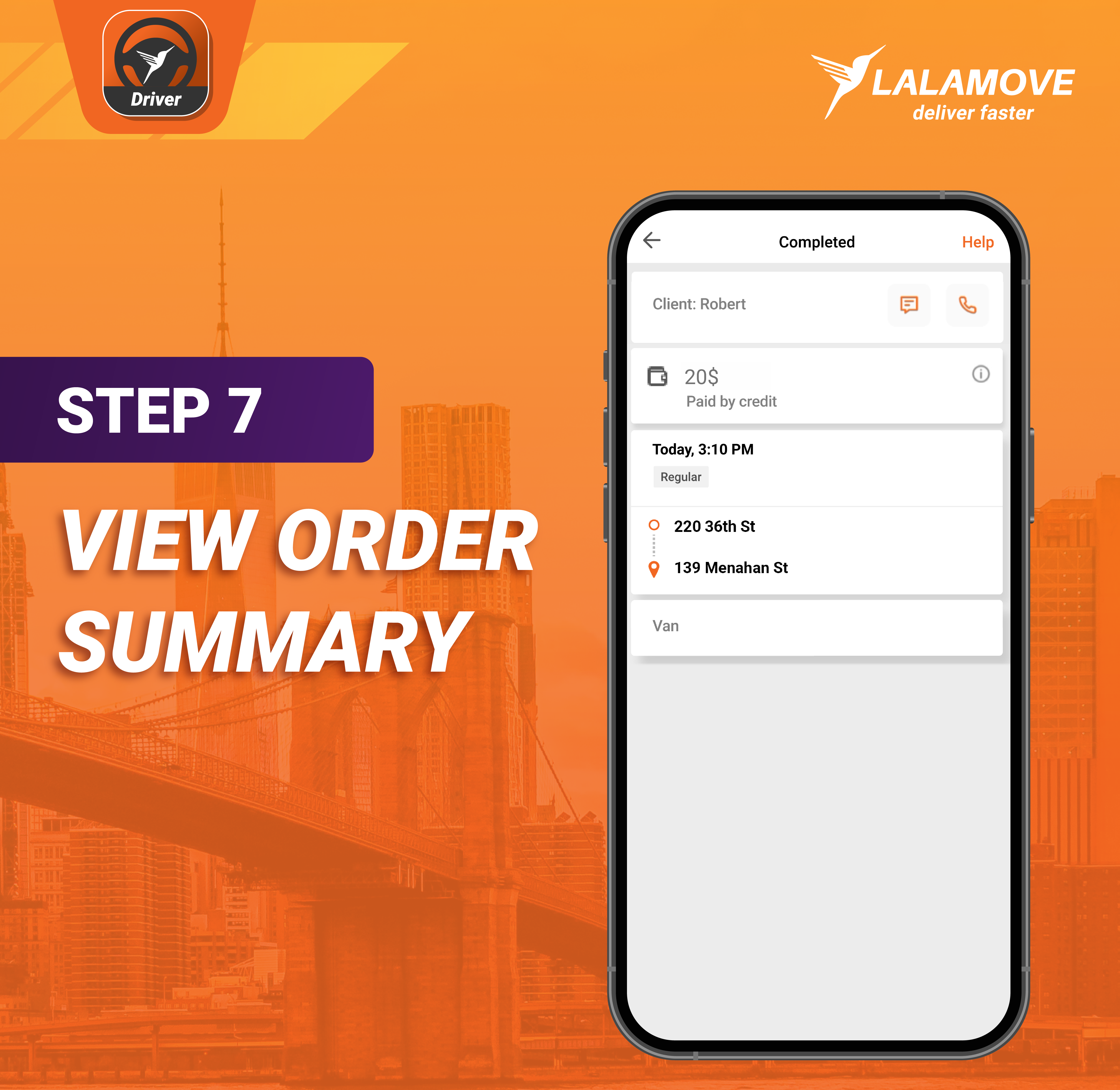
Step 7: View Order Summary
You’ve successfully completed a delivery! Now you can review the order summary screen. This screen shows the:
-
Total fare
-
Distance covered
-
Time taken
Tips for Successful Deliveries
Keep these tips in mind for making every delivery a success:
-
Always check the details before accepting an order. Orders can be immediate or scheduled for a future date.
-
Make sure your phone has enough battery power and an internet connection for the duration of the delivery.
-
Clearly communicate with the customer and let them know about any delays.
-
Reach out to info@lalamove.us if you have any concerns during the delivery.
Now you’re ready to take on orders! Remember to tap the “Go Online” button in the Lalamove Driver App to be notified about incoming orders so you don’t miss out.
Frequently Asked Questions
Lalamove Driver Partners have the flexibility to take on as many or as few orders as they want at any time of the day.
Before accepting an order, the order details will show if the pickup is immediate or scheduled for a later time.
Yes, if you see a scheduled order, you can accept it. Just remember to arrive at the scheduled pickup time.
For any issues during an order, reach out to info@lalamove.us for help.