



Whether you’re sending a forgotten laptop to your friend across town, getting your latest digital marketplace decor find, or coordinating multiple deliveries for your business, placing an order on the Lalamove app is easy and stress-free. This guide breaks down each step in the process so you can confidently book your next delivery.
Step 1: Enter Pick-Up and Drop-Off Locations
To get started, open the Lalamove User app and enter your order’s pick-up and drop locations.
.png?width=5000&height=4867&name=How%20to%20Place%20Order_Step%201%20(A).png)
While entering each location, you can also add address details, such as an apartment number, phone number, and contact name. You can also tick the “Save this address” box to save your frequent locations for even faster booking next time.
Tap “Confirm” to lock in the address details.
.png?width=5000&height=4867&name=How%20to%20Place%20Order_Step%201%20(B).png)
If needed, you can add multiple stops to your order. Just tap “+Add stop” and enter the details for any additional stops.
.png?width=5000&height=4867&name=How%20to%20Place%20Order_Step%201%20(C).png)
Step 2: Set the Pick-Up Time
Once your locations are set, it’s time to decide when you want your delivery picked up. Lalamove offers on-demand and scheduled delivery, so you can choose a time that works for you.
All orders are set to immediate pickup by default. So if you need an item delivered right now, you can move on to the next step!
To schedule a later pick-up time, tap “Now” on the top right.
-1.png?width=5000&height=4867&name=How%20to%20Place%20Order_Step%202%20(A)-1.png)
Tap “Later” to open the scheduler.
.png?width=5000&height=4867&name=How%20to%20Place%20Order_Step%202%20(B).png)
Here, you can schedule your delivery for a specific time and date.
.png?width=5000&height=4867&name=How%20to%20Place%20Order_Step%202%20(C).png)
Tap “Schedule” to confirm the pick-up time.
Step 3: Select Your Vehicle
Now you can pick the right vehicle size for your order. The available vehicle types include:
-
Bikes
-
Sedans
-
SUVs
-
Cargo vans
-
Sprinter vans
If you’re sending a small package, you’ll be all set with a bike or sedan. For larger moves, a cargo or sprinter van may be a better fit.
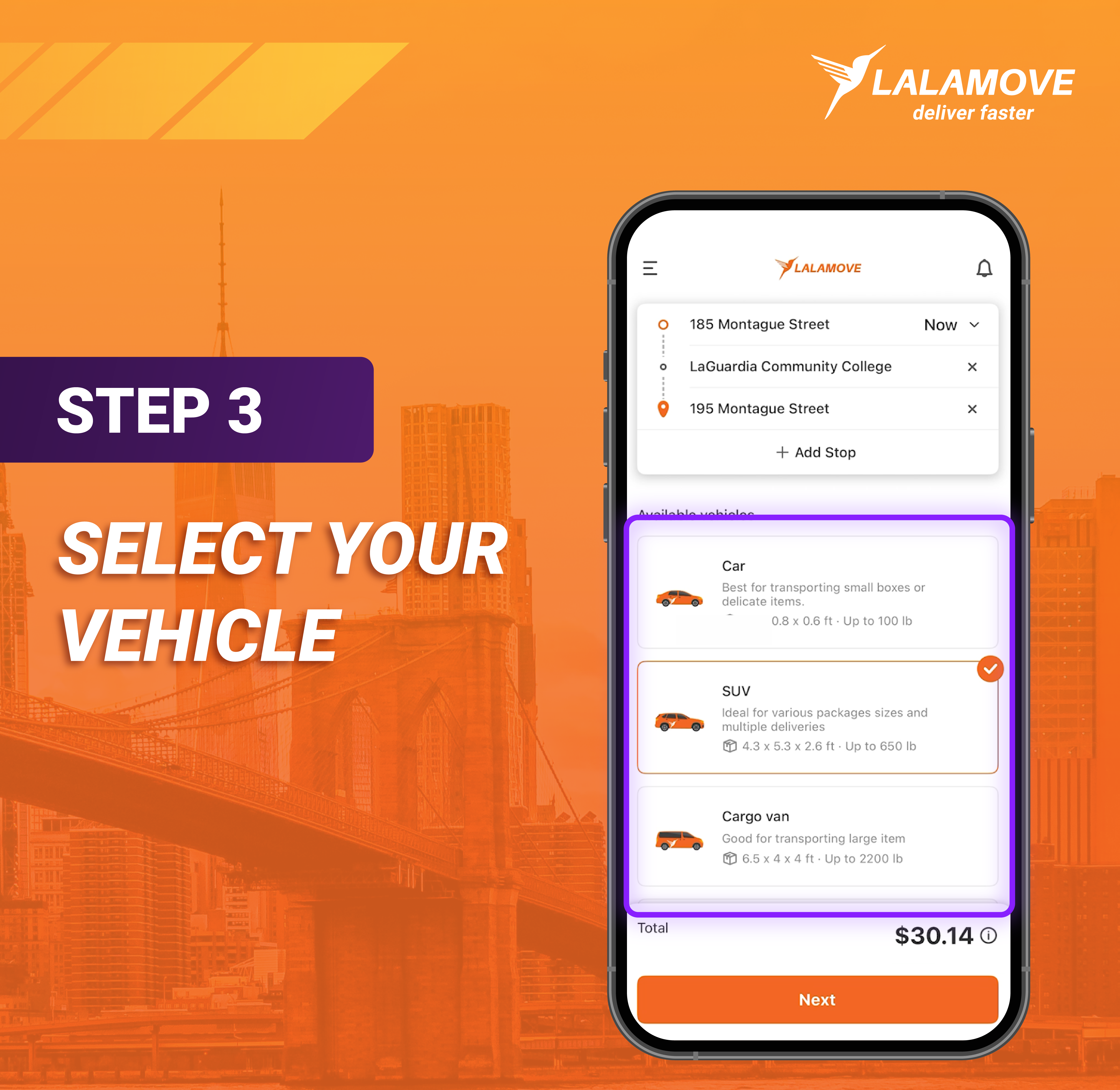
After you select a vehicle, you can see the delivery price. Tap “Next” to continue the booking process.
Step 4: Add Notes and Payment Details
You’re almost done booking your delivery! In this final screen, you can:
-
Add notes to your driver
-
Update the order contact phone number
-
Ensure your favorite drivers see your order first
-
Select cash or card payment
-
Add a coupon
You can share helpful details to prevent delivery delays in the driver notes section, such as:
-
Amount of items to be delivered
-
Care instructions for your items
-
Who the driver should hand the delivery to
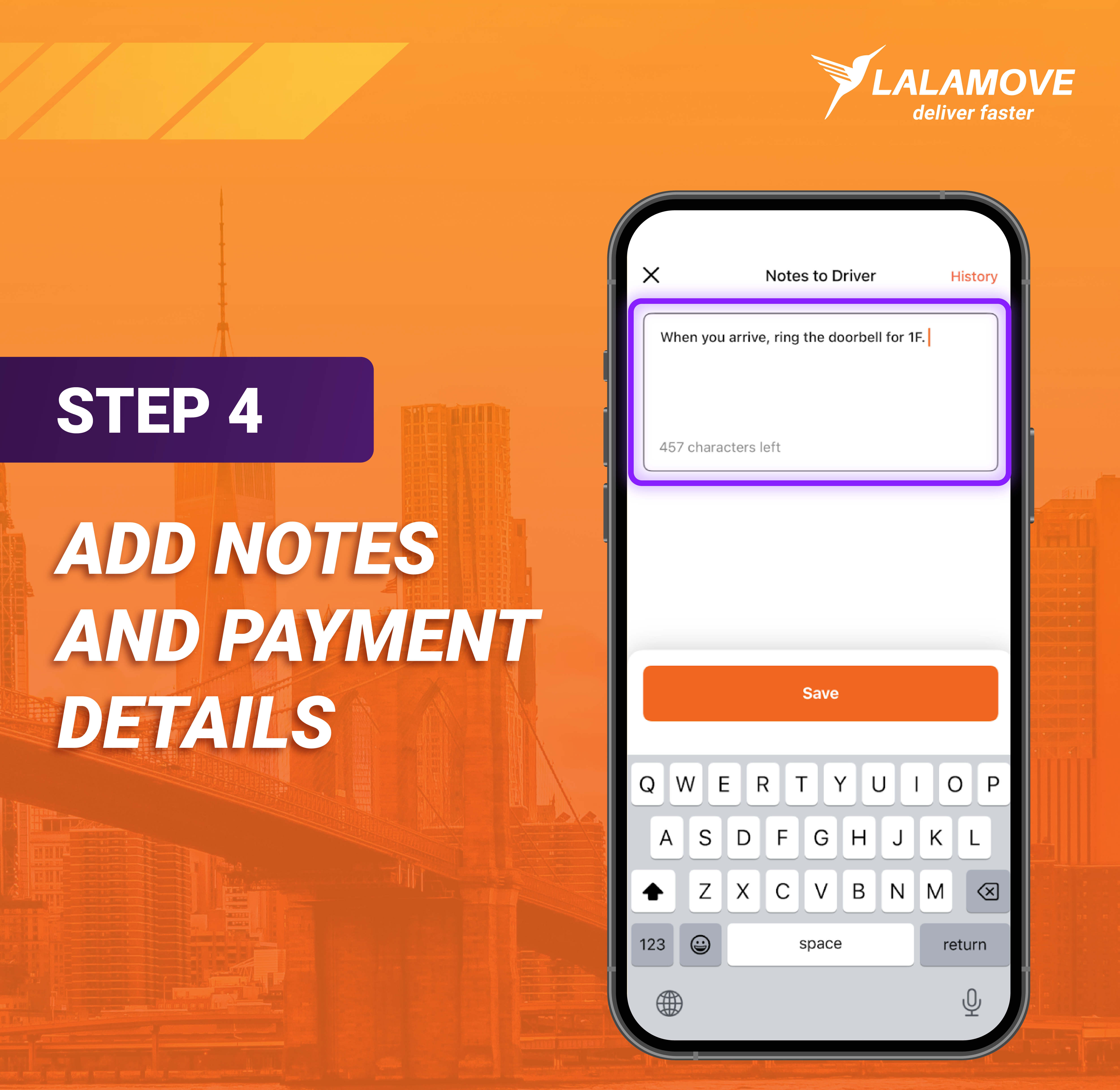
Tap “Save” to lock in the driver notes.
Step 5: Review & Confirm Your Order
All that’s left is to double-check your delivery details. Just tap “Review Order” and then “Check Out” to confirm.
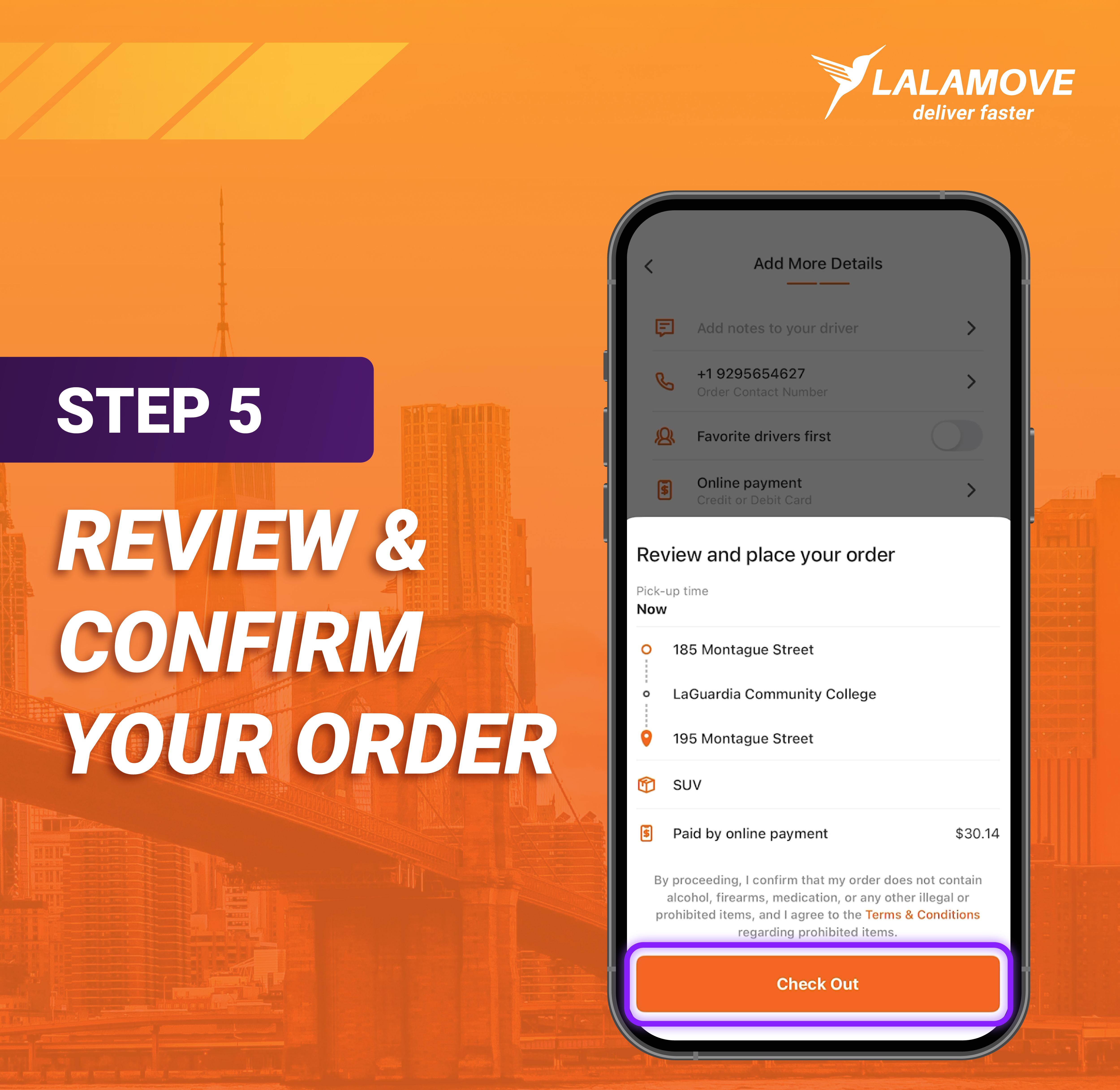
Once your order is placed, you can track your delivery and communicate with your driver directly in the app.
Ready to get started? Download the Lalamove User app from the App Store or Google Play Store and book your first delivery today.
Frequently Asked Questions
Yes, while entering your pick-up and drop-off details, tap “+Add stop” to add multiple stops to the same order.
Yes, you can schedule deliveries in advance. Tap “Now” next to the pick-up location and use the scheduler to set the pick-up time and date.
Yes, after placing your order, you can track your driver in real time directly through the Lalamove app.
For more support, reach out to info@lalamove.us for help.